Introduction
As a website grows, you will naturally delete old content, update URLs, or link to external sites that eventually shut down. When a user clicks a link that no longer exists, they hit a frustrating 404 error page.
While an occasional broken link seems harmless, having dozens of them flags your site as neglected to search engine bots. It wastes your crawl budget and hurts your authority metrics. In this optimization guide, we will look at how broken links damage your search visibility and show you how to find and fix them using free online utilities.
How Broken Links Damage Your Site Performance
Search engines use automated software bots called crawlers to discover and index your web pages. Crawlers move through your site by following internal links from one post to another.
When a crawler encounters a dead link, it hits a dead end. This disruption causes two primary issues:
- Wasted Crawl Budget: Search engines limit how much time they spend auditing your site. If they spend that time crawling broken links, your actual articles might not get indexed.
- Poor User Engagement: High bounce rates from broken links tell search algorithms that your website provides an inferior user experience, which can lower your rankings.
Step-by-Step Guide to Auditing Bad Links
Step 1: Run a Full Site Scan with Online Broken Link Checkers
You do not need to manually click every link on your site. Use a free web utility like Screaming Frog SEO Spider or Online Broken Link Checker.
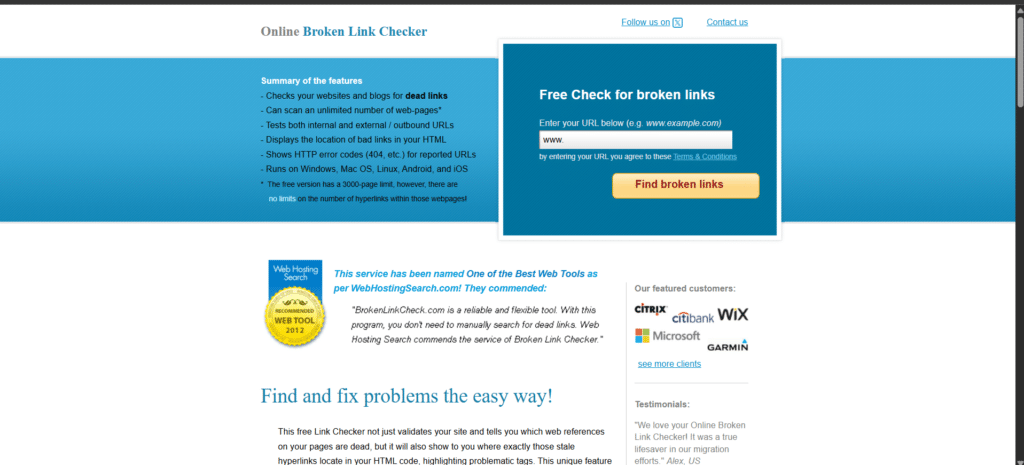
- Open the tool and type your homepage URL
wwntools.cominto the search bar.
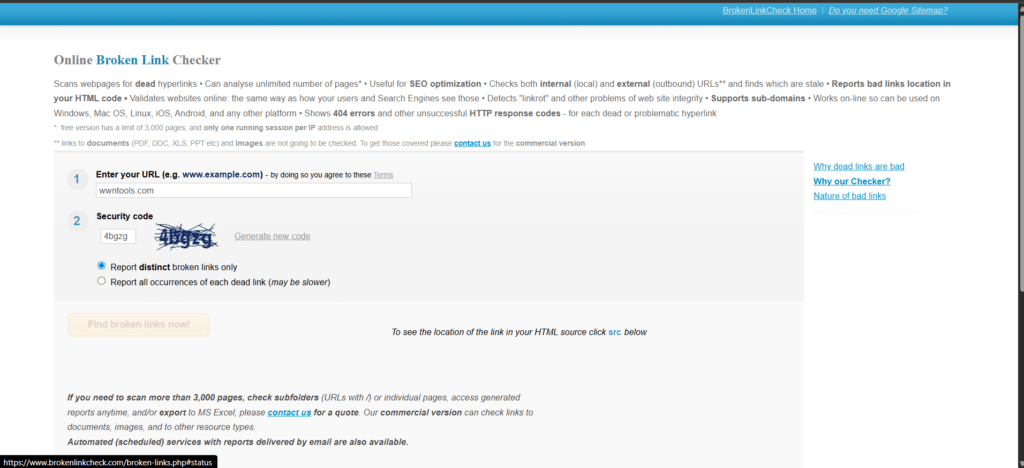
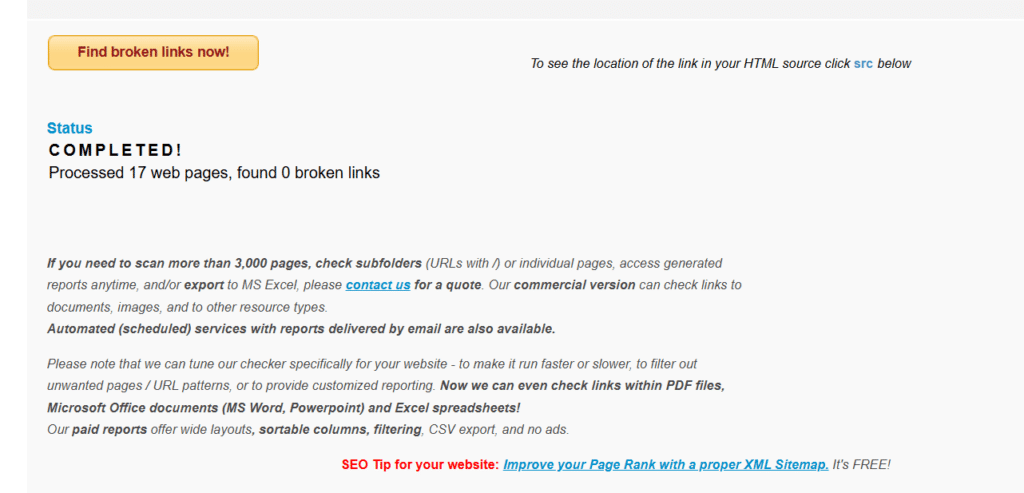
- Let the utility run a full diagnostic crawl across your site code.
- Filter the final results view by Response Code and look for any items labeled 404 Not Found.
Step 2: Use Google Search Console to Spot Errors
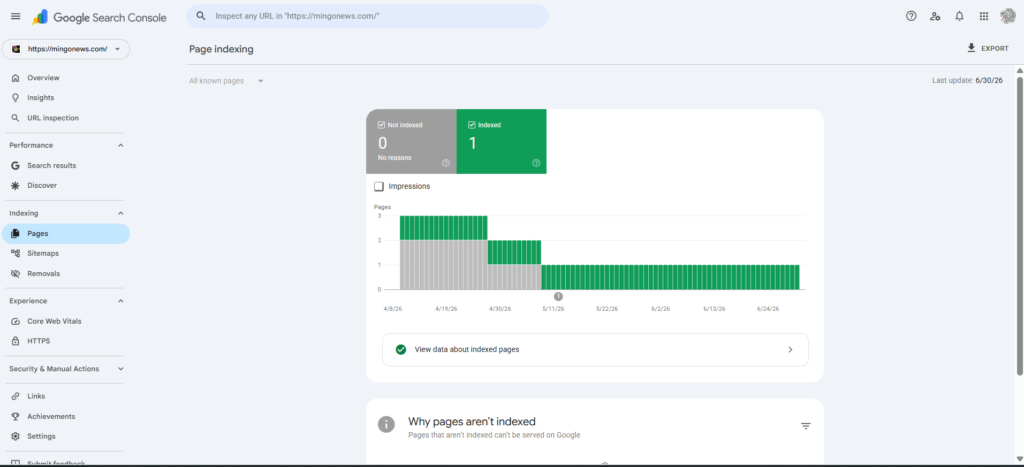
Log into your Google Search Console dashboard regularly to check for indexing errors. Click on the Pages tab under the Indexing section in the sidebar. Scroll down to look for a specific error flag: “Not found (404).” Clicking this row shows you the exact URLs that Google tried to crawl but could not access.
Step 3: Repair Your Links Inside WordPress
Once you identify your broken URLs, you can fix them using three simple methods:
- Update the URL: If you made a typo when linking to a post, edit the article and fix the link path.
- Remove the Link: If you linked to an external site that no longer exists, remove the hyperlink entirely while keeping the text intact.
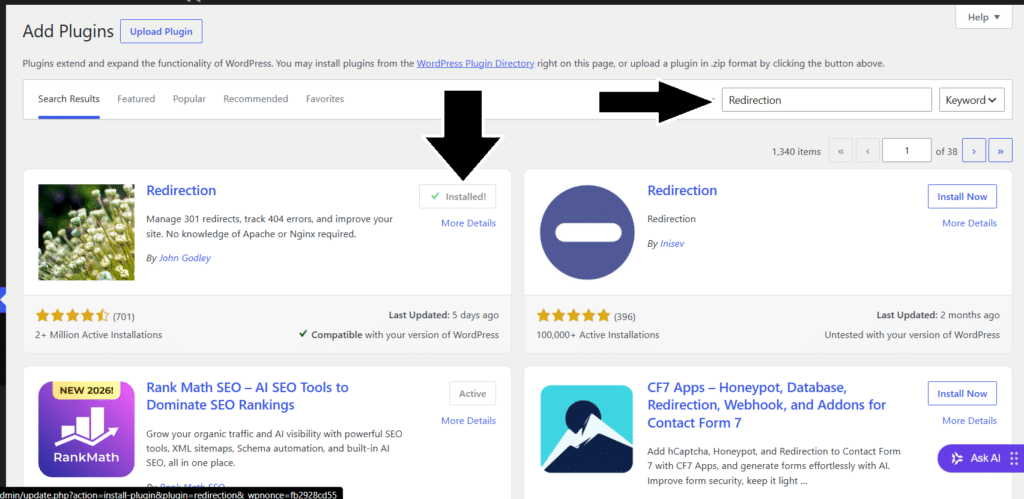
- Setup a 301 Redirect: If you changed the URL of an active page, install a lightweight plugin like Redirection to automatically send users and search bots to the correct new page.
Conclusion
A healthy website requires regular maintenance. By setting up a monthly audit routine with free link checking utilities, you ensure search bots can crawl your pages without hitting dead ends. Keep your internal links clean to protect your user experience and maximize your search engine visibility.
Pingback: How to Generate XML Sitemaps to Ensure Fast Search Engine Indexing - WWNTOOLS