Introduction
Every time a user visits a webpage, their browser has to request and download dozens of separate files, including HTML code, stylesheets, scripts, and logos. If your server has to bundle and deliver these exact same assets every single time a repeat user clicks an internal link, your website performance will slow down significantly.
Browser caching solves this performance bottleneck by telling the visitor’s device to store temporary copies of static files locally. In this technical optimization guide, we will break down how caching instructions work and how you can configure them to reduce server stress.
The Technical Mechanics Behind Caching Headers
When a browser communicates with your web hosting server, they pass invisible instructions back and forth inside data packets called HTTP headers. Caching relies primarily on two specific types of control directives:
1. Cache-Control Directives
This modern header standard allows you to set explicit rules for different file types. You can define who can cache the asset, how long they are allowed to store it before checking for an updated version, and whether the file contains sensitive information.
- Max-Age Parameters: This metric tells the web browser exactly how many seconds a file remains valid before it expires.
2. Expires Headers
This legacy header system uses a specific calendar date and timestamp to declare a file’s validity window. While newer server networks favor Cache-Control, keeping valid Expires headers active ensures backward compatibility across older desktop browsers.
ALSO READ: How to Read Image Compression Metadata to Improve Page Loading Speed
Step-by-Step Guide to Auditing Your Cache Configurations
Step 1: Run a Server Header Check
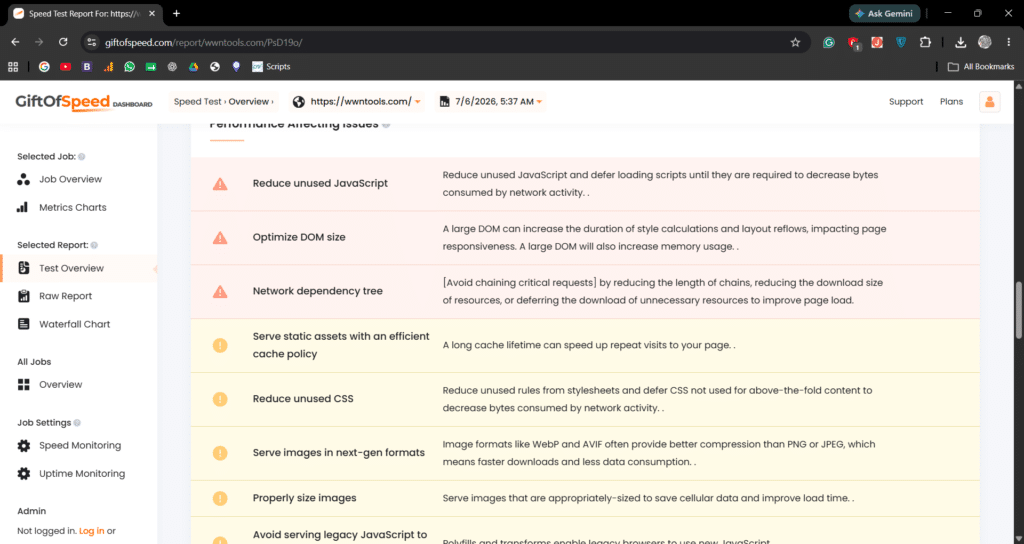
Before installing new software packages, check your website’s active header configuration using free online server inspection utilities (such as KeyCDN’s HTTP Header Check or GiftOfSpeed).

- Type your live URL into the utility query field.

- Scan the output data table for lines starting with
cache-controlorexpires.
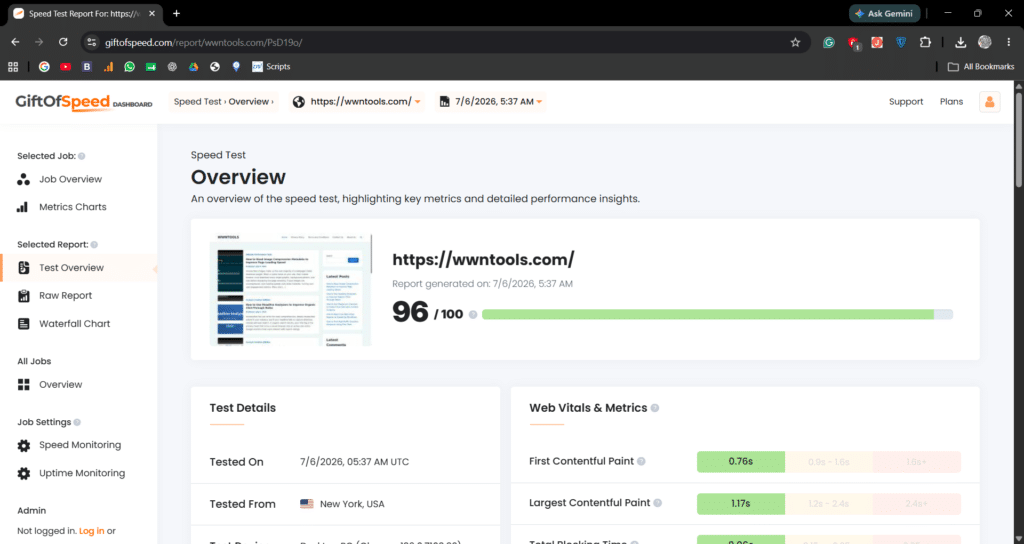
- If these rows are missing or display a status of zero seconds, your site is forcing browsers to download files repeatedly.
Step 2: Enable Expiry Rules in WordPress Using Plugins
The easiest way to write these caching rules directly into your server files is through optimization plugins like W3 Total Cache, WP Super Cache, or WP Fastest Cache.
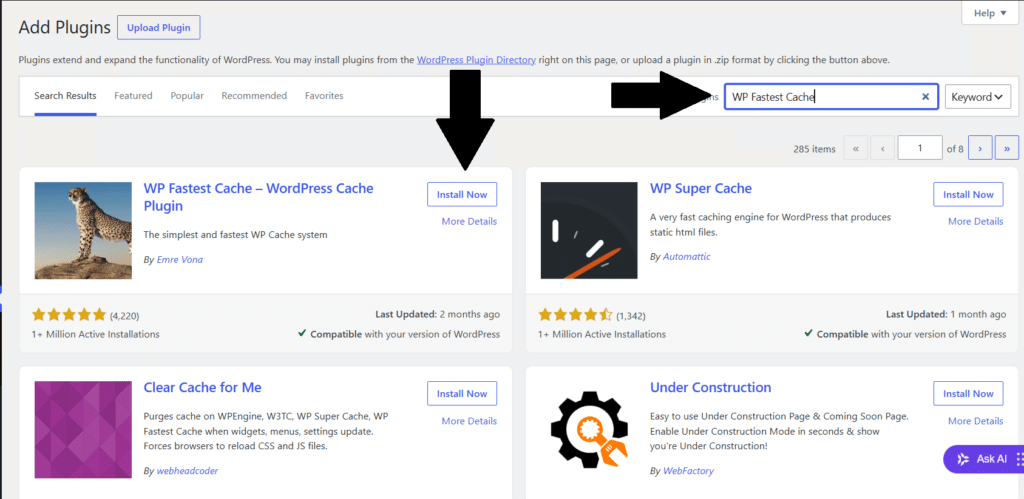
- Download and activate wp fastest cashe.
- Navigate to your caching plugin’s settings tab.
- Locate the “Browser Cache” settings section.
- Check the boxes for “Set Expires Header” and “Set Cache-Control Header.”
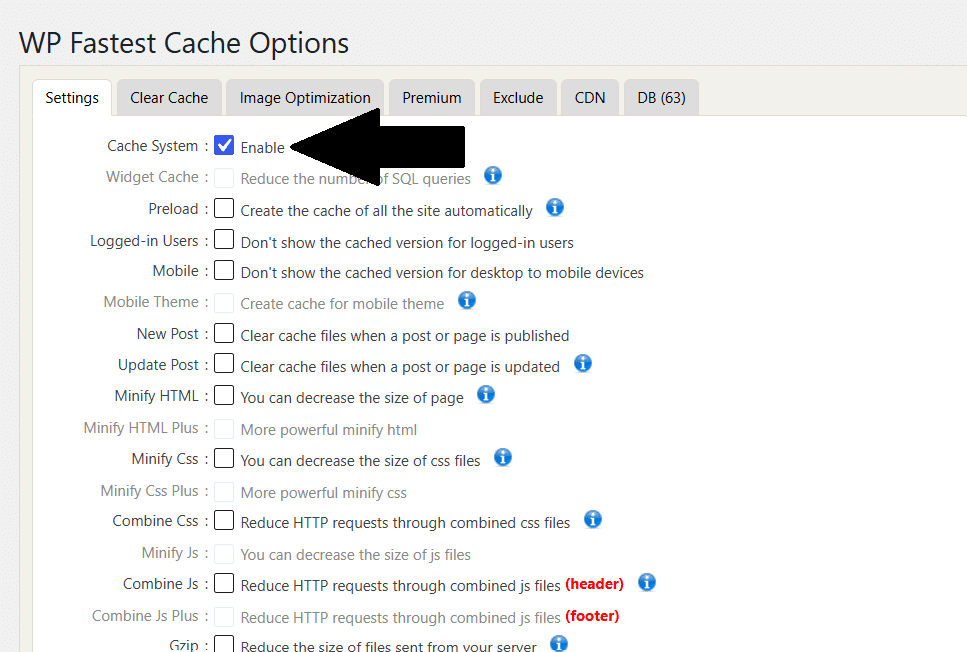
- Save your adjustments to push these rule rewrites live across your platform.
Step 3: Configure Media Cache Windows manually via .htaccess
If you prefer a clean setup without using heavy plugins, you can inject caching instructions straight into your server’s root .htaccess configuration file using this standard time block:
- Create a >htaccess file in your site’s file manger and upload these lines into file.
- After uploading hit save.
<IfModule mod_expires.c>
  ExpiresActive On
  ExpiresByType image/jpg "access plus 1 year"
  ExpiresByType image/webp "access plus 1 year"
  ExpiresByType text/css "access plus 1 month"
  ExpiresByType application/javascript "access plus 1 month"
</IfModule>
Setting a one-year expiry window on static images ensures that return visitors enjoy near-instant page loading speeds.
Conclusion
Implementing proper browser caching configurations is one of the most effective ways to lower your server response times and decrease bandwidth consumption. By utilizing web optimization utilities to set explicit asset lifetimes, you provide a lightning-fast browsing experience for your audience. Check your site headers regularly to ensure your asset distribution remains highly optimized.
Pingback: How to Setup Content Delivery Network Utilities to Reduce Latency – WWNTOOLS